Function manual

Alfa Dashboard screen guide

This page explains the main Alfa Dashboard firmware functions: from first setup to OBD-II parameter readings, through advanced screens such as Custom Dash, DTC and OBD Terminal.

01

Device startup

At power-on, Alfa Dashboard shows the splash screen with the Alfa logo. During this stage the firmware initializes the display, touch interface, LVGL graphics, saved preferences and the services required for OBD communication.

  • Preparation of the graphical interface and fonts.
  • Loading of saved settings, such as language, theme and startup screen.
  • Automatic transition to first setup or to the OBD connection flow.

Alfa Dashboard splash screen
02

Language selection

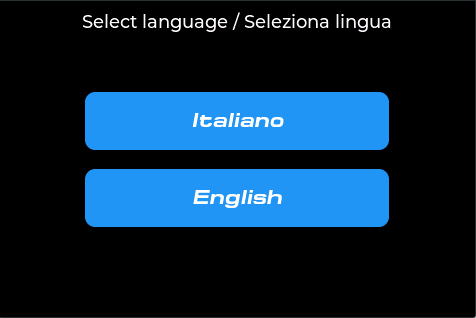
On first startup, or after resetting preferences, the system may ask for the interface language. The choice between Italiano and English is stored and used for the main screen labels.

  • Fast selection using touch buttons.
  • The preference is saved for following startups.
  • Depending on the installed firmware version, the language can also be managed from Settings.
Language selection screen
03

Bluetooth OBD connection

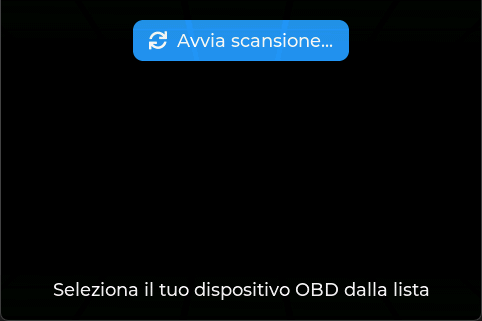
The Bluetooth screen lets you start scanning and select the OBD/ELM327 device to connect. Once the adapter is found, the firmware manages the Bluetooth serial connection and prepares PID requests.

  • Start scan button to search for available devices.
  • Selection of the OBD adapter from the detected list.
  • Connection used by the screens to query vehicle parameters.

For stable readings, use a good-quality ELM327-compatible OBD adapter and wait until the ECU is ready before rapidly changing screens.

Bluetooth OBD connection screen
04

Home Dashboard

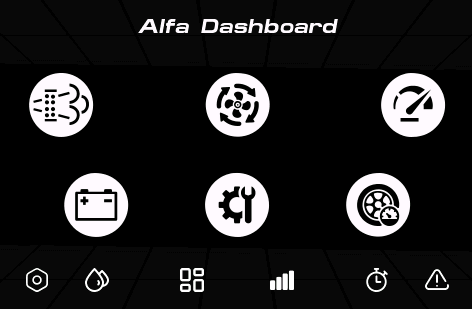
The Home screen is the application navigation hub. From here you can access the different sections through touch icons. The interface is designed for quick in-car use, with high contrast and direct access to the most important functions.

DPFfilter/particulate icon
Performancegauge icon
EGRfan icon
Batterybattery icon
Tyreswheel icon
AdBluedrop icon
Custom Dashfour-rectangle icon
Injectfour-bar icon
Accelerationstopwatch icon
DTCwarning icon
Settingshexagon icon
Alfa Dashboard Home screen
05

DPF monitoring

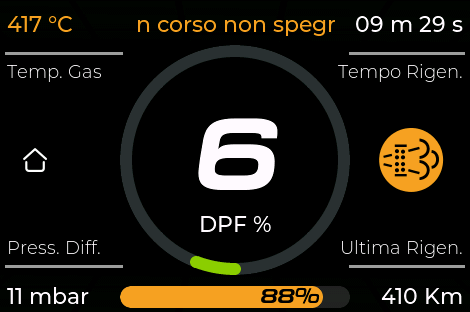
The DPF screen is the core Alfa Dashboard function: it lets you monitor diesel particulate filter status in real time, recognise active regeneration and understand when it is better not to switch the engine off.

  • DPF %: central indicator of the estimated soot load/filter saturation.
  • Gas Temp.: exhaust gas temperature; one of the main values used to recognise regeneration.
  • Diff. Press.: DPF differential pressure, expressed in mbar, useful to evaluate filter backpressure.
  • Regen. Time: duration of the current regeneration, shown in minutes and seconds.
  • Last Regen.: distance travelled since the last completed regeneration.
  • Bottom bar: graphic progress/reading indicator for the DPF cycle, useful for quick reading without checking all numeric values.

During regeneration the firmware displays the “regeneration in progress / do not switch off” warning. DPF temperature is highlighted using colour thresholds: up to about 300 °C stable/low reading, from 301 to 505 °C orange, above 505 °C red with stronger visual emphasis. If audio feedback is enabled, the firmware can alert the user when relevant DPF thresholds are reached.

DPF screen during regeneration
05B

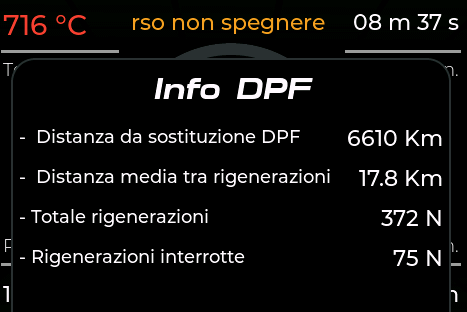
Info DPF

The DPF Info pop-up shows historical filter data and helps evaluate regeneration behaviour over time.

  • Distance since DPF replacement: kilometres recorded by the ECU since replacement or DPF reference reset.
  • Average distance between regenerations: average kilometres between one regeneration and the next.
  • Total regenerations: total number of recorded regenerations.
  • Interrupted regenerations: number of incomplete regenerations, useful to understand whether the car is often switched off during the cycle.

An increase in interrupted regenerations or a very low average distance between regenerations may indicate heavy city use, incomplete cycles or conditions that should be checked with deeper diagnostics.

DPF detail screen
06

EGR and air management

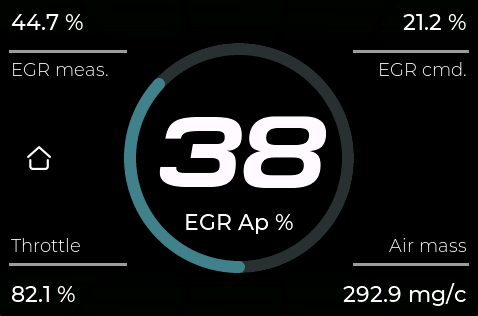
The EGR screen shows the main parameters related to exhaust gas recirculation and air flow. It is useful to check the actual valve opening, the command requested by the ECU and the intake behaviour.

  • EGR Ap %: EGR valve opening.
  • EGR meas.: measured value.
  • EGR cmd.: value commanded by the ECU.
  • Throttle: throttle / air actuator position.
  • Air mass: intake air mass, expressed in mg/c.
EGR screen
07

Performance, DNA and engine parameters

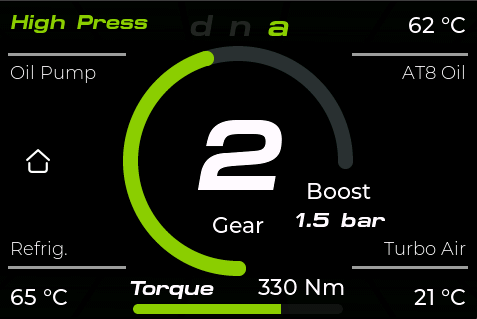
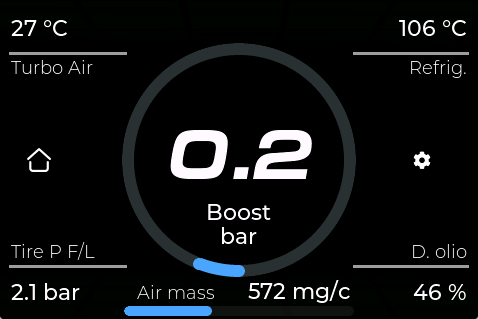
The Performance screen groups the most useful dynamic driving parameters. It is designed for quick reading of DNA mode, gear, turbo boost, torque and key temperatures.

  • DNA: shows the d / n / a driving mode and highlights the active one.
  • Gear: gear detected by the gearbox.
  • Boost: turbo pressure in bar
  • Torque: engine torque in Nm, with a lower graphic bar for immediate reading.
  • Oil Pump: oil pump status, for example High Press or Low Press, with colour highlighting.
  • AT8 Oil: automatic AT8 gearbox oil temperature.
  • Refrig.: engine coolant temperature.
  • Turbo Air: intake/turbo air temperature.

The screen is optimized for fast reading: the central value gives an immediate view of the selected gear even in automatic gearbox mode, while the side parameters complete the engine/gearbox picture. Animations and graphic bars make load changes easier to perceive.

Performance screen
08

IBS battery and Start&Stop

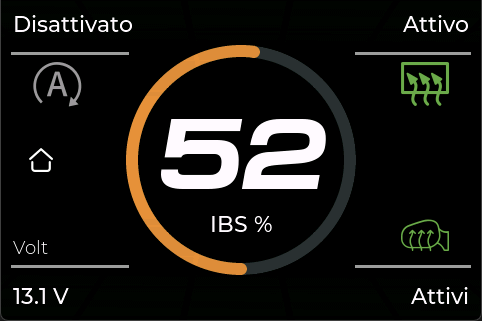
The Battery screen shows the IBS system status and the main electrical parameters. It is designed to quickly check charge level and the status of related systems.

  • IBS %: central battery status indication.
  • Volt: real-time battery voltage.
  • Start&Stop: active/inactive status.
  • Status icons for related functions, such as heated rear window/mirrors when available.
IBS battery screen
09

Service and oil level

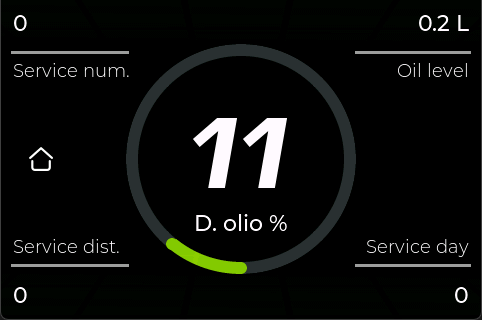
The Service screen collects maintenance data available through the ECU. It is useful to quickly check deadlines, counters and oil level.

  • Oil degradation %: main oil-related indicator.
  • Oil level: oil level when available.
  • Service num.: service counter.
  • Service dist. e Service day: distance/days associated with maintenance.
Service and oil screen
10

Tyres

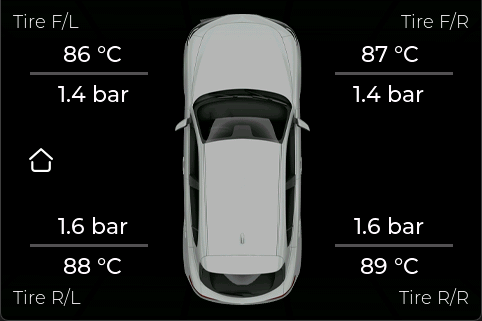
The Tyres screen displays pressure and temperature for the four tyres around the vehicle outline. It is useful to check abnormal values or differences between wheels.

  • Tire F/L e Tire F/R: front left / front right tyres.
  • Tire R/L e Tire R/R: rear left / rear right tyres.
  • Combined reading of pressure in bar and temperature in °C.
Tyres screen
11

AdBlue

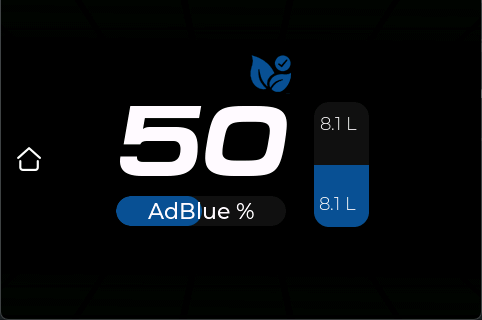
The AdBlue page shows the estimated tank level, expressed as a percentage and in litres. The central value makes the remaining level immediately clear.

  • AdBlue %: tank percentage level.
  • Side indication in litres.
  • Dedicated drop/leaf graphic to immediately recognise the function.
AdBlue screen
12

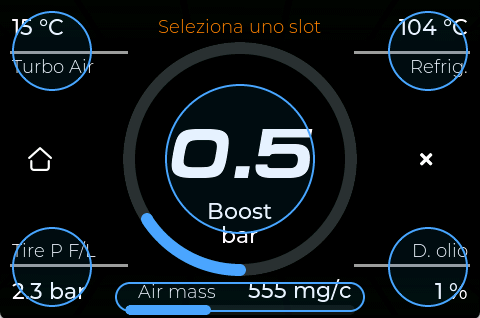
Custom Dash

Custom Dash lets you create a personalised screen by choosing the parameters shown in the different slots. It is designed for users who want a custom dashboard instead of the predefined pages.

  • Large high-readability central value.
  • Configurable side and lower slots.
  • Edit mode to select the parameter assigned to each area.
Custom Dash screen
12B

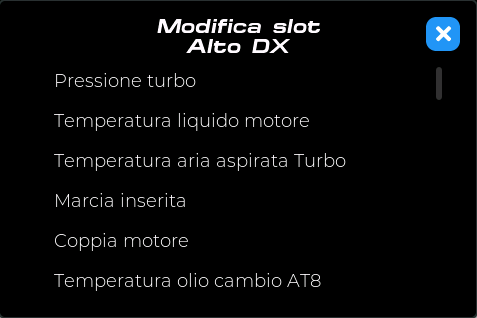
Slot editing

Touching a slot opens the edit window. From there you can choose which parameter to assign, such as turbo pressure, coolant temperature, intake air temperature, gear, torque or gearbox oil temperature.

  • Scrollable list of available parameters.
  • Saved configuration for following startups.
  • Close button to return to the personalised dashboard.
Custom Dash edit mode Custom Dash parameter list
13

Inject

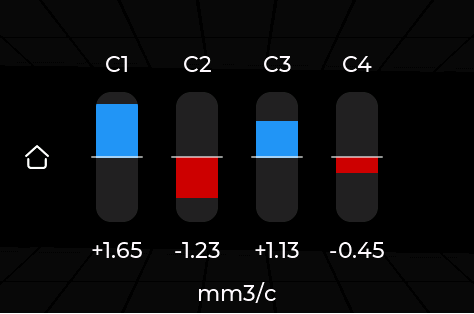
The Inject page is dedicated to monitoring injection parameters. It allows you to keep injector corrections under control and get an immediate reading of cylinder behavior while the engine is running.

  • Cylinder corrections: displays the correction values for each injector, useful for comparing the balance between cylinders.
  • Real-time reading: values are updated during OBD polling, based on the PIDs configured in the firmware.
  • Bar graph: makes it easy to quickly identify any differences between cylinders without relying only on numeric values.
  • Preventive diagnostics: helps identify abnormal behavior that should be further checked with professional diagnostic tools.

The displayed values are indicative and depend on the ECU response, vehicle model and supported PIDs. This page does not replace professional diagnostics: any abnormal values should always be verified with dedicated tools.

Alfa Dashboard Inject screen
14

Acceleration

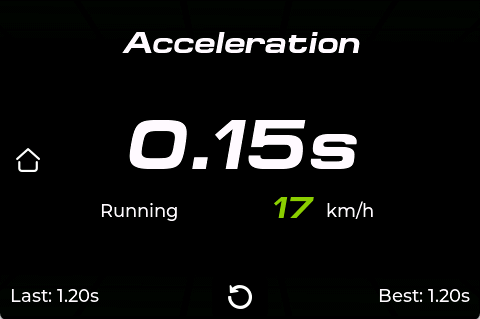
The Acceleration page measures an acceleration run and shows the current time, speed and references from the last test. It is intended for demonstration use and for comparing runs made in the same conditions.

  • Current time shown in the centre.
  • Speed in km/h during the test.
  • Last e Best: last time and saved best time.
  • Reset/restart test button.

Use only in safe conditions and in compliance with road regulations. This function does not replace professional measuring instruments.

Acceleration screen
15

DTC errors

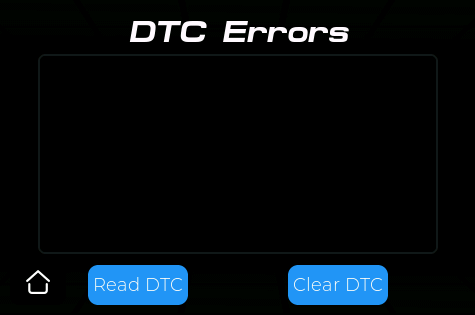
The DTC screen can read diagnostic trouble codes and, when allowed by the vehicle, clear stored errors. It includes a list area for displaying errors and two dedicated buttons.

  • Read DTC: reads diagnostic trouble codes from the ECU.
  • Clear DTC: attempts to clear stored errors.
  • Central area dedicated to the list of detected codes.

Because the database may not contain a description for every error code, always note the code before clearing an error.

DTC screen
16

Settings

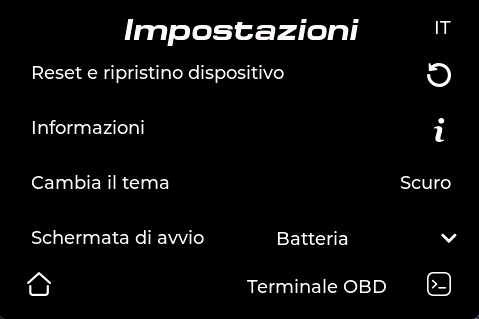
The Settings page lets you customise firmware behaviour, choose the startup screen, manage sound feedback, automatic hibernation and DPF-related functions.

  • Device reset and restore: initializes or restores the saved configuration.
  • Information: opens system information, used libraries and related credits.
  • Change theme: selects the interface theme, for example Dark or light, or choose from other available themes.
  • Startup screen: defines the page shown at power-on, such as Battery, DPF, Home or other supported screens.
  • OBD Terminal: opens the advanced console for sending manual commands to the OBD adapter.
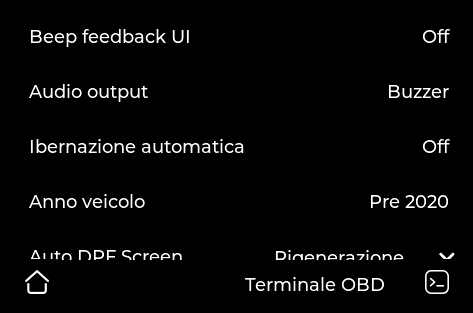
  • Beep feedback UI: enables or disables the confirmation sound for button presses/interactions.
  • Audio output: selects the audio output, for example Off, passive Buzzer or Speaker/active buzzer, depending on the installed hardware.
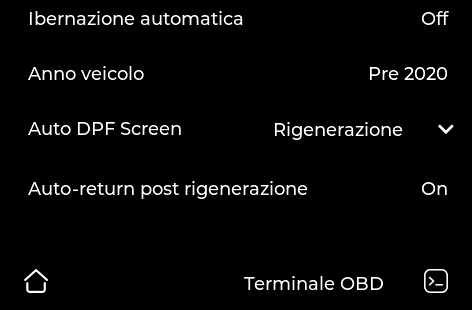
  • Automatic hibernation: enables automatic device shutdown when the vehicle is turned off, useful on cars that keep the USB powered when the ignition is off.
  • Vehicle year: Pre 2020 / Post 2020 selection, used to adapt logic and parameter layout, especially in the Battery/IBS section.
  • Auto DPF Screen: can automatically switch to the DPF screen during regeneration or when the configured threshold is reached, so the user immediately sees the “do not switch off” warning.
  • Auto-return after regeneration: when enabled, after regeneration ends the firmware automatically returns to the previous or configured screen.

Available items may vary slightly between stable and beta firmware. Settings are saved in the device preferences and reused on following startups.

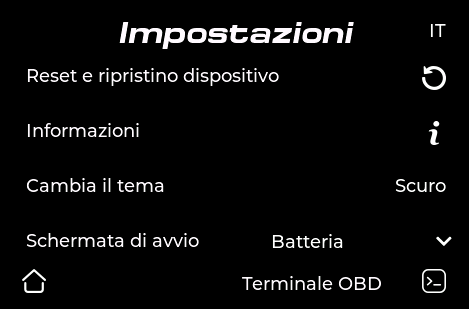
Main settings screen Audio, beep and hibernation settings Vehicle year and Auto DPF Screen settings Auto-return after regeneration settings
17

OBD Terminal

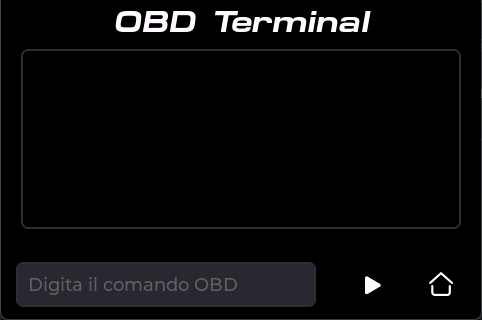
The OBD Terminal is an advanced section that lets you send manual commands to the OBD interface and view responses. It is useful for testing, diagnostics and PID verification.

  • Input field for the OBD command.
  • Send button.
  • Log area for displaying received responses.

This feature is intended for advanced users: sending incorrect commands may produce unexpected responses or temporarily interrupt communication with the adapter.

OBD Terminal screen

Recommended use

Before use

Connect the OBD adapter, switch ignition on or start the engine, then wait for the Bluetooth connection.

While driving

Use the main screens for quick readings. Avoid prolonged interactions while the vehicle is moving.

Diagnostics

Always note any DTC codes before clearing them and use the terminal only for conscious tests.